
Your new Samsung Galaxy S5 smartphone can connect to Itcentre's Microsoft Exchange ActiveSync server and sync your email, calendar, contacts and even tasks. You, however, need to know the server settings for the sync to be successful and that you can download your messages to your phone.
This article will guide you through properly setting up your Itcentre Microsoft Exchange email:
Step 1: From the Home screen, tap the Apps icon and then Settings.
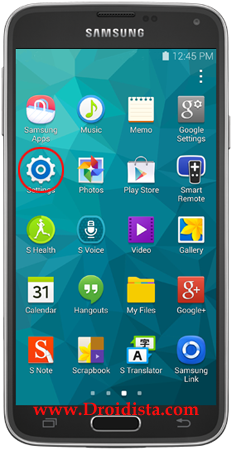
Step 2: Now scroll down to ‘USER AND BACKUP’ section and tap Accounts.

Step 3 - Tap Add Account

Step 4: One the next screen find and tap Microsoft Exchange ActiveSync.

Step 5: Now enter your Exchange email address and your password (please refer to your instructions by our support staff for this password). Then, tap Manual setup on the bottom of the screen.

Step 6: As mentioned earlier, you must enter specific Itcentre mail server information to setup your email. The information you need to enter in the following screen is:
Domain\username: Details provided to you by our team
Password: yourpassword
Exchange Server: Details provided to you by our team (Example: remote.itcentre.com.au)
SSL: Ticked

Step 7: On the next screen, you will be prompted with the Activation information. Read it and tap OK.

Step 8: Now, you need to configure your account and set Period to sync email (the default is 2 weeks), Sync schedule, Peak schedule, Emails retrieval size, and Period to sync Calendar. You may also want to check the option Notify me when email arrives.
You may leave all of these settings to the default options.

Step 9: Lastly, you need to give your account recognizable name in case you have more than one account on your phone, then tap Done when finished.
